Dropbay
A shelf for the things you are dragging. Shake the pointer while dragging and a shelf appears. Drop files on it, go to where they belong, and drag them all out at once.
Dropbay is a drag-and-drop shelf for Mac that holds files, folders, text, links and images while you move between windows, then lets you drag them all out at once.
$5.99 once · 14-day free trial · macOS 14 or later
How it works
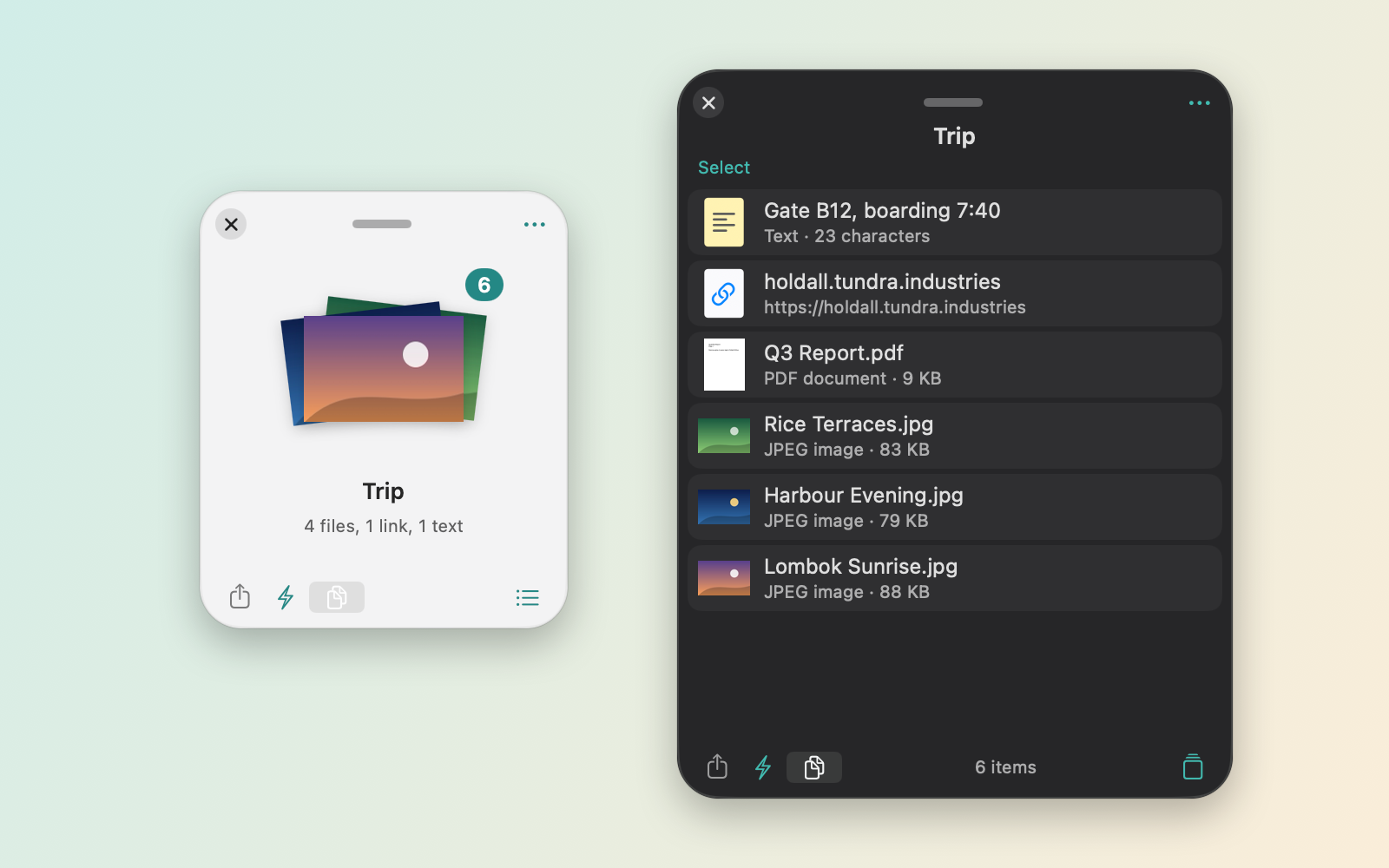
Dropbay lives in the menu bar. A shelf is a small floating window that holds whatever you drop on it until you need it.
Shake while dragging
Start dragging a file and move the pointer quickly from side to side. A shelf appears next to the pointer.
Drop
Drop the file on the shelf. Add more from other folders, apps or windows. The shelf stays on top while you move around.
Drag out
Go to where the files belong and drag everything off the shelf at once, or drag out one item or a selection.
Free features
These features are free and stay free after the trial.
Shake to open
Shake the pointer while dragging to open a shelf. With shelves already open, a shake shows them next to the pointer with a New Shelf target, so you drop straight onto the one you want. Sensitivity is adjustable, and you can list apps where shaking is ignored.
Shortcut, menu bar and notch
Press a global shortcut (Control-Option-Space by default) for a new shelf, or drop on the menu bar icon or the notch area.
Multiple shelves
Keep several shelves open at once. Give each one a name and one of 8 colours.
Files, text, links and images
Collect files, folders, text, links and images on one shelf.
Photos and Mail
Drop photos dragged from Photos and messages dragged from Mail on a shelf.
Drag out at once
Drag everything out in one move, or drag out a single item or a selection.
Quick Look
Select an item and press Space to preview it.
Share and AirDrop
Send shelf items through the Share menu, including AirDrop.
Clipboard shelf
Make a shelf from what you copied. This happens only when you ask for it.
Remembered after a restart
Shelves and their contents are still there after you quit Dropbay or restart the Mac.
Pin and reopen
Pin shelves you use often, and reopen any of the last 10 shelves you closed.
Copy, select, save
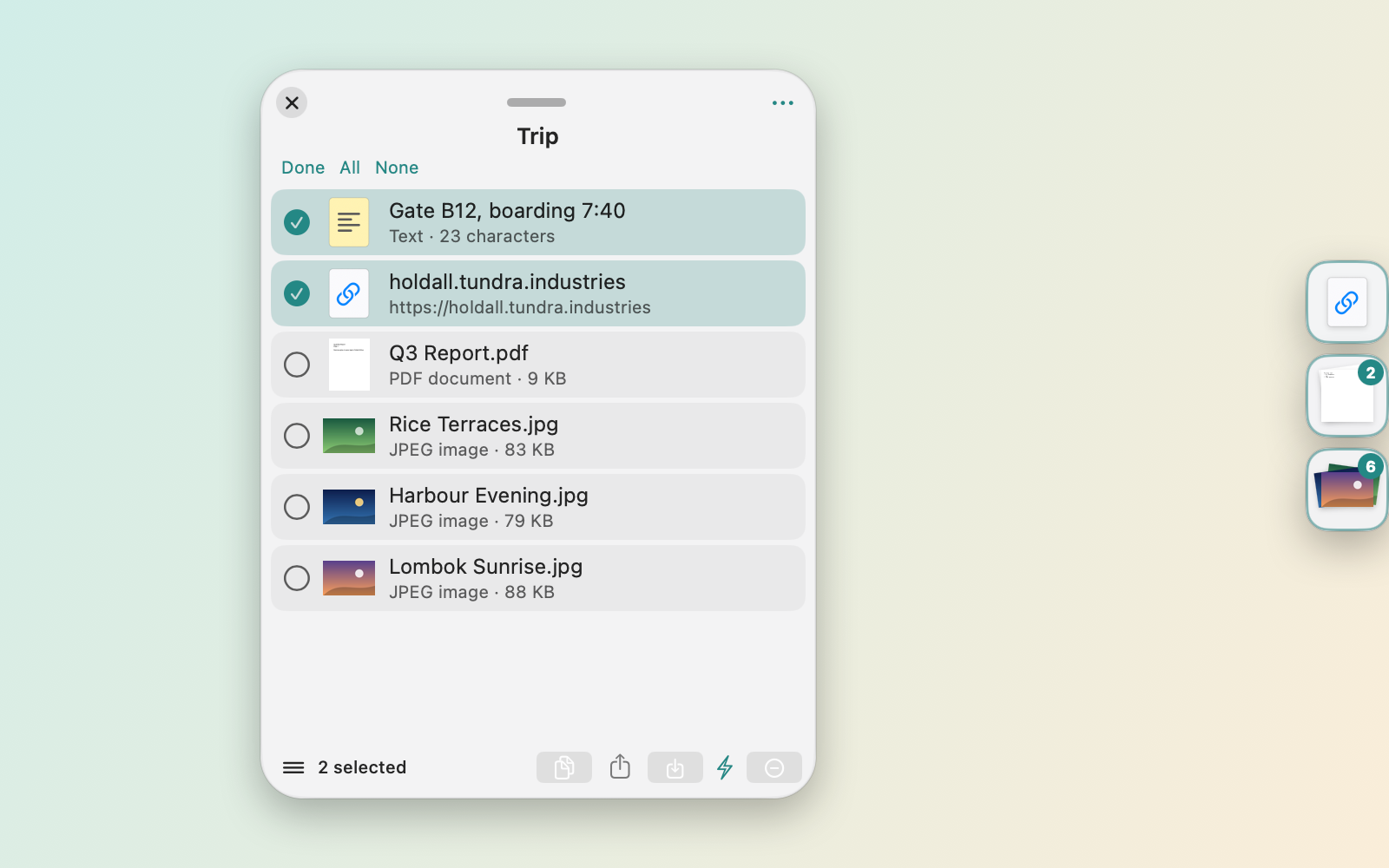
Copy All with ⌘C (files as files, links as links, text as text), copy paths, tick items in the list and act on just those, save copies to a folder, sort, and clear with undo.
Readable over anything
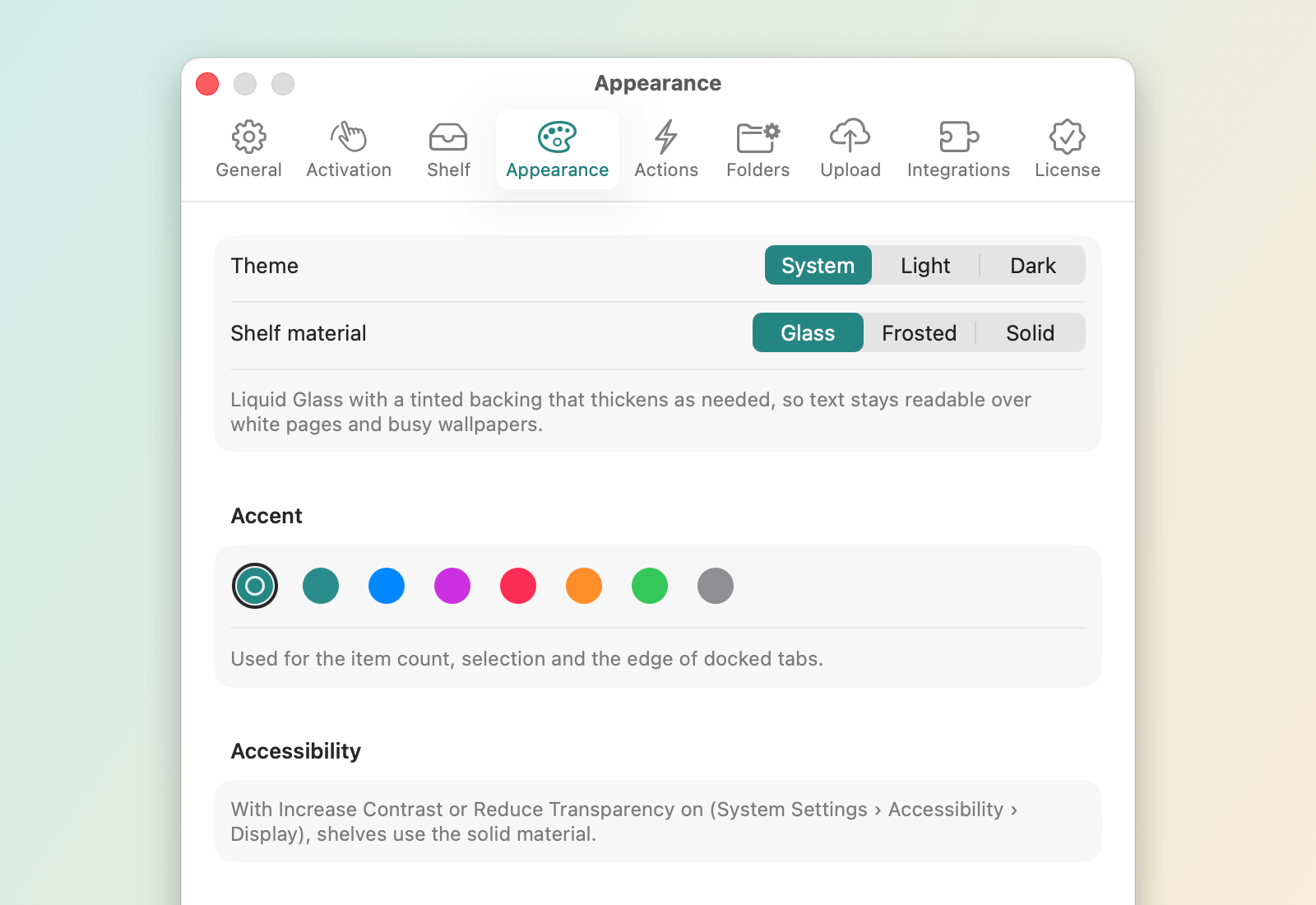
The shelf backing thickens as needed so text stays legible over white pages and busy wallpapers. Pick a light or dark theme, glass, frosted or solid material, and an accent colour.
Dock to any screen edge
Drag a shelf to any edge of any display and it becomes a small tab right where you let go. Tabs stack against each other; hover one to open its shelf. Floating shelves snap to the screen edges and to each other.
Shortcuts, Control Center, widget, Spotlight
Shortcuts actions, Control Center controls (macOS 26), a desktop widget of recent shelves, and Spotlight search for shelves.
Services menu
Select files or text in another app and choose Add to Dropbay from the Services menu.
Command line and URL scheme
The
holdalltool adds files from Terminal (holdall add <files>,holdall new --name X). Scripts can also useholdall://links.
Pro
Pro adds actions and automation. All Pro features are included in the 14-day trial and in the $5.99 license.
Image actions Pro
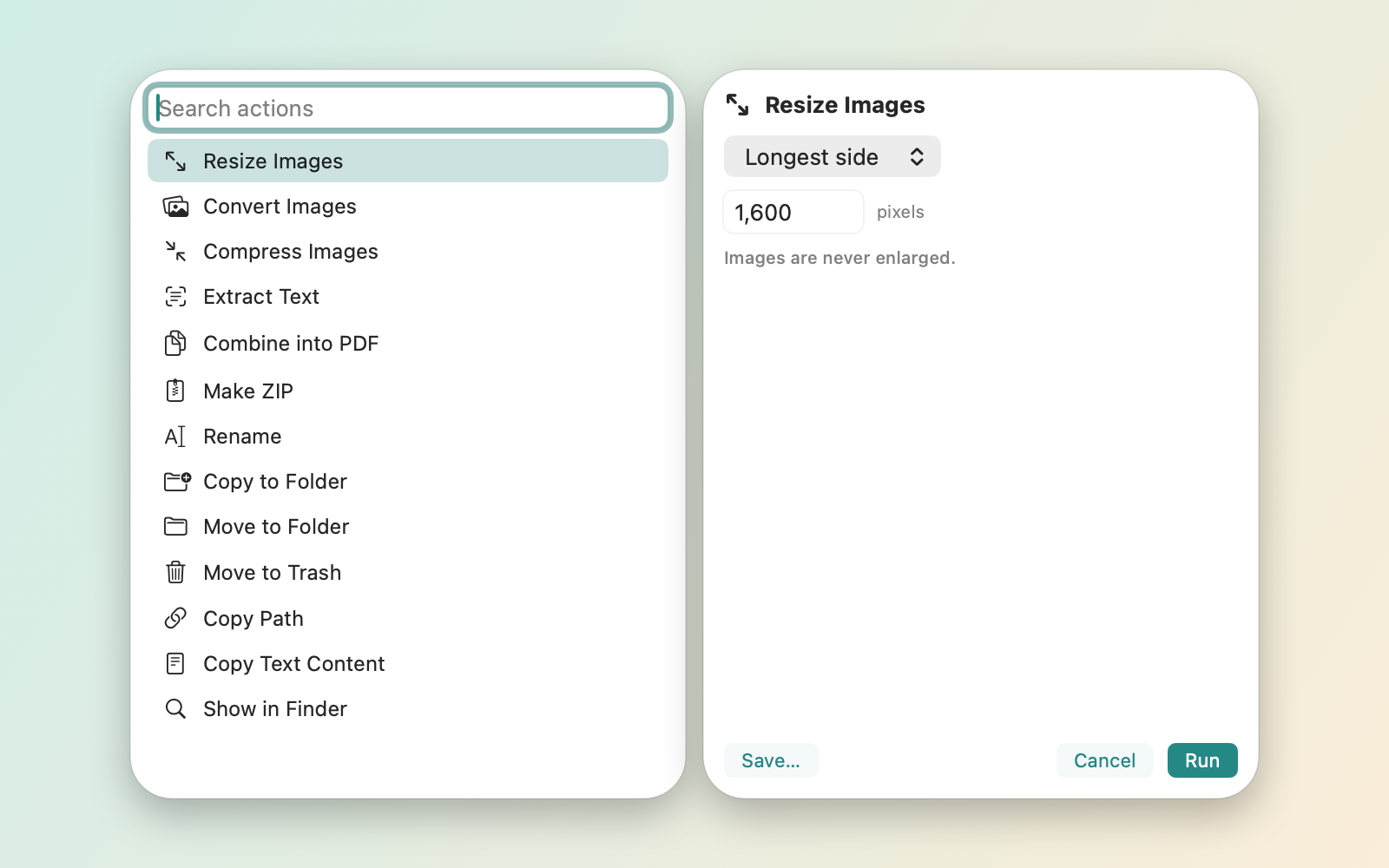
Resize images, convert them to JPEG, PNG, HEIC or TIFF, and compress them.
Text from images Pro
Extract text from images with on-device text recognition and copy it to the clipboard.
PDFs and ZIPs Pro
Combine PDFs into one document, or make a ZIP of the shelf.
Batch rename Pro
Rename many files at once with a counter, find and replace, or the date.
File actions Pro
Copy paths, move or copy items to a folder, or move them to the Trash.
Custom actions Pro
Save an action with its settings as a preset and run it again later.
Instant Actions Pro
Drop zones appear under the shelf and run an action the moment you drop on them.
Command bar Pro
Press Shift-Return and type to find and run an action.
Your own scripts Pro
Use AppleScript, Automator workflows and shell scripts as actions.
Watched folders Pro
New files in a folder land on a shelf, for example your screenshots folder.
Upload to your own bucket Pro
Upload to an S3-compatible bucket you own (Amazon S3, Cloudflare R2, Backblaze B2, MinIO, Wasabi). The link is copied. Credentials are kept in the macOS keychain.
Dropbay
$5.99
Paid once. Lifetime license. No subscription.
- 14 days of Pro free when you first open Dropbay
- After the trial, Dropbay stays free with no waiting and no delays; Pro features show a Pro badge
- One license works on up to 3 Macs
- No account, no sign-in, no ads, no analytics
Payment is handled by Stripe. Refunds within 14 days of purchase. See the terms.
Compared with other shelf apps
| App | Price | Where to get it | After the trial |
|---|---|---|---|
| Dropbay | $5.99 once | Direct download with a license key | Free mode with no delay |
| Dropover | Free download, Pro $7.99 once | Mac App Store only | Free mode adds a 3-second delay |
| Yoink | $8.99 | – | – |
Prices checked October 2026.
System requirements
- macOS 14 Sonoma or laterControl Center controls need macOS 26.
- Apple silicon and IntelOne universal app.
- No Accessibility permissionDropbay does not ask for it.
- PrivacyFiles stay on your Mac unless you upload to your own bucket. Privacy policy.
Questions
Is there a subscription?
No. Dropbay costs $5.99 once. The license works on up to 3 Macs.
What happens after the 14-day trial?
Dropbay keeps working in free mode with no waiting and no delays. Pro features show a Pro badge until you enter a license key.
Where do I enter my license key?
Click the Dropbay icon in the menu bar, choose License…, paste the key from your purchase email and click Activate.
Does Dropbay upload my files?
No. Files stay on your Mac. The only upload is to an S3-compatible bucket you set up yourself, and only when you choose it.
Which Macs does Dropbay run on?
macOS 14 Sonoma or later, on Apple silicon and Intel. Control Center controls need macOS 26.
Can I get a refund?
Yes. Email support@tundra.industries within 14 days of purchase from the address you bought with, and you will receive a full refund.
Are updates included?
Yes. Updates are delivered through the updater built into Dropbay, and the license has no yearly fee.
How is Dropbay different from using the Desktop or Finder tabs?
macOS has no floating shelf. The Desktop and Finder tabs only work for Finder destinations and usually sit behind other windows. A Dropbay shelf stays on top while you move between apps, holds files, text, links and images from several places, and lets you drag them all out at once.
Does Dropbay need Accessibility permission?
No. Dropbay detects the shake without asking for Accessibility permission.
Does Dropbay copy my files onto the shelf?
No. The shelf keeps a reference to each file. Dragging out to a folder on the same disk moves the file, as Finder does; holding Option copies it.
More answers on the support page. Step-by-step help with moving, sharing and batch-processing files is in the guides.