
How to drag and drop between apps on a Mac
To drag and drop between apps on a Mac, put both windows on screen, drag the file, text or image from one window and drop it in the other. If the destination is hidden, start the drag and press Command-Tab to switch to the other app, or hold the item over that app's icon in the Dock until it comes forward, then drop. Most apps accept files, text, links and images this way.
Last checked: October 2026 on macOS 26 Tahoe.
Put two windows side by side
- Drag the first window by its title bar to the left edge of the screen and let go when the outline appears. It fills the left half.
- Drag the second window to the right edge. It fills the right half.
- Drag files or text from one window to the other.
Edge tiling is on macOS 15 Sequoia and macOS 26 Tahoe. If it does not happen, check Drag windows to left or right edge of screen to tile in System Settings › Desktop & Dock, or hold Option while you drag. You can also hover over the green button at the top left of a window and choose a tile position, or use Window › Move & Resize in the menu bar. On macOS 14 Sonoma, hover over the green button and choose Tile Window to Left of Screen; this opens both apps in full-screen Split View.
Switch apps in the middle of a drag
- Command-Tab: start dragging, then press Command-Tab with your other hand and let go of Command on the app you want. Its windows come forward and you can drop.
- Dock icons: drag the item onto an app's icon in the Dock and hold for a moment; the app comes forward. Drop on the icon instead to open the file in that app.
- Mission Control: to see every window first, put them side by side as above, or use a shelf (below).
Drop into folders with spring-loading
When the destination is a folder, drag the file onto a folder in Finder, the sidebar or the Dock and hold it there. The folder opens, and you can keep going into subfolders. Press Space to open a folder at once. Spring-loading is in System Settings › Accessibility › Pointer Control.
Move or copy
- Dragging a file to a folder on the same disk moves it; to another disk it copies it. Hold Option to copy instead.
- Dragging a file into an app, such as an email or a chat, adds a copy and leaves the original where it is.
- Dragging selected text into another app copies it. Dragging an image from a web page saves a copy where you drop it.
With Dropbay
Dropbay removes the need to keep both windows on screen. Start dragging and shake the pointer, and a shelf appears next to it. Drop the item, switch to the other app however you like, and drag it out of the shelf there. A shelf holds files, folders, text, links and images, including photos dragged from Photos and messages dragged from Mail, and you can drag everything out in one move or pick a selection.
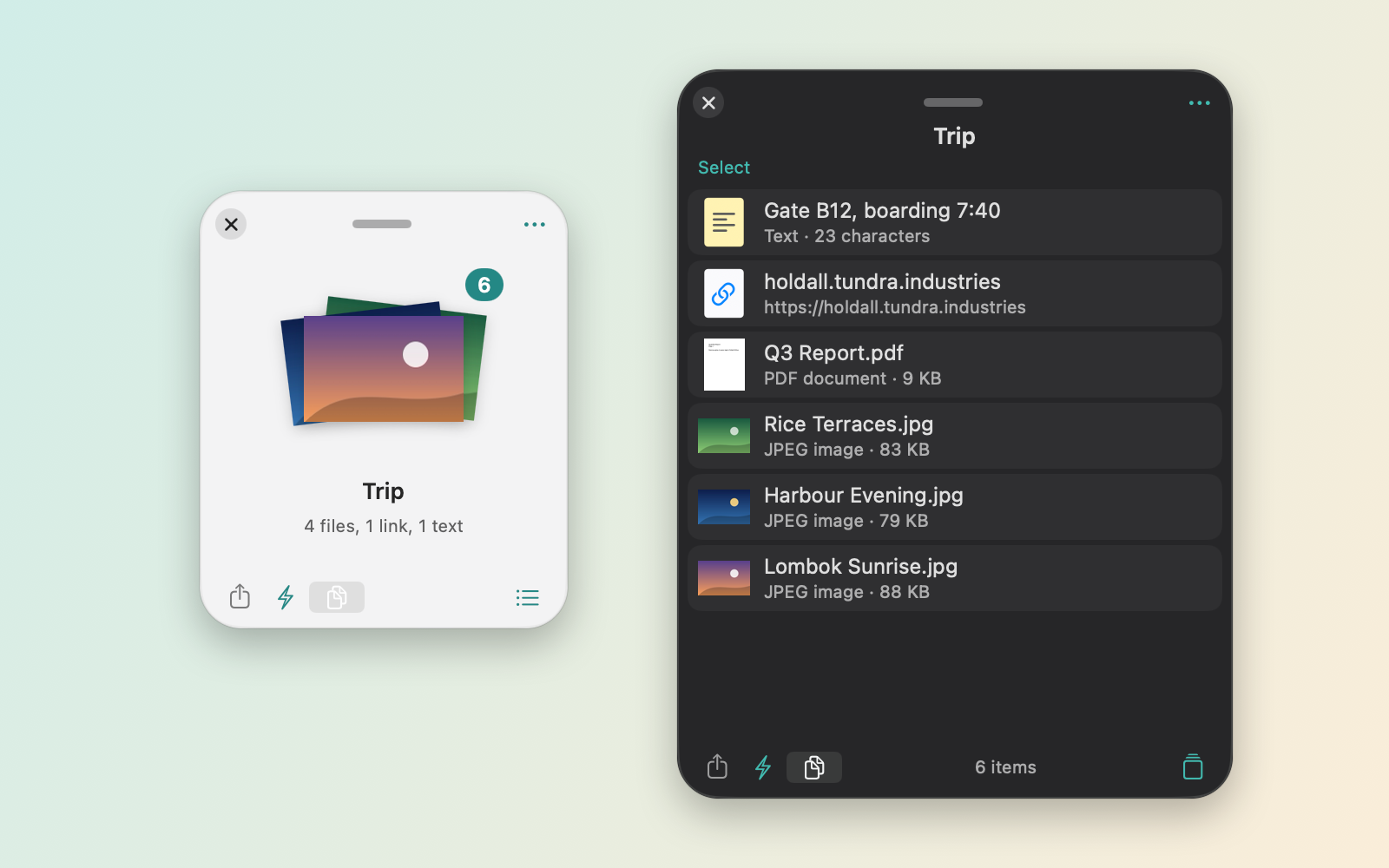
The shelf is free and stays free after the 14-day trial of Pro. Pro is $5.99 once and works on up to 3 Macs. macOS 14 or later, Apple silicon and Intel.
Questions
Why can I not drop a file into an app?
The app or that part of the window does not accept drops. Try dropping on the app's icon in the Dock, or use the app's own Open or Attach command.
Does dragging between apps move the original file?
No. Dragging a file into an app adds a copy. Only dragging between folders on the same disk moves the file.