
How to move files from several folders at once on a Mac
To move files from several folders at once on a Mac, tag them in each folder and then move them together from the tag in the Finder sidebar, or copy each group and use Option-Command-V (Move Item Here) in the destination. Finder only moves one folder's selection per drag, so every built-in way takes a trip per folder. Here are the four built-in methods, where each one stops working, and the shelf method.
Last checked: October 2026 on macOS 26 Tahoe.
Method 1: Tag the files, then move them from the tag
- In each folder, select the files you want, Control-click and choose a tag colour. Use a tag you don't use for anything else.
- Click that tag in the Finder sidebar (under Tags). Finder lists every file with the tag, wherever it is.
- Press Command-A, then drag the files to the destination folder.
- With the files still selected, Control-click and click the tag again to remove it.
Limits: it takes a trip to every folder twice (once to look, once to tag), and the tag list depends on Spotlight, so files on unindexed drives may be missing.
Method 2: Copy, then Move Item Here
- Select files in the first folder and press Command-C.
- Open the destination and press Option-Command-V. The Edit menu shows this as Move Item Here.
- Repeat for each source folder.
Limits: Finder has no Cut for files, and the clipboard holds one set at a time, so this is one round trip per source folder.
Method 3: Search, then select
If the files share something, such as a name, a kind or a date, press Command-F in Finder, search This Mac, and select the results. Drag them to the destination. Save the search (File > Save) if you'll need it again. Limits: this only helps when the files have something in common that Finder can search for.
Method 4: Drag with spring-loading
For each folder, select the files and drag them toward the destination, holding over folders until they open (System Settings > Accessibility > Pointer Control > Spring-loading). Limits: one drag per source folder, and you have to hold the drag the whole way.
Moving versus copying
- Dragging to a folder on the same disk moves the files. Dragging to another disk copies them.
- Hold Option while dragging to copy, or Command to move to another disk.
- Edit > Undo Move (Command-Z) in Finder puts the files back.
The shelf method
Dropbay gives the files a place to wait while you collect them. Start dragging the first file and shake the pointer; a shelf appears. Drop it there, open the next folder and drop the next file, and so on. When everything is on the shelf, open the destination and drag the whole stack in at once. Files moved this way leave the shelf; that's a setting you can turn off.
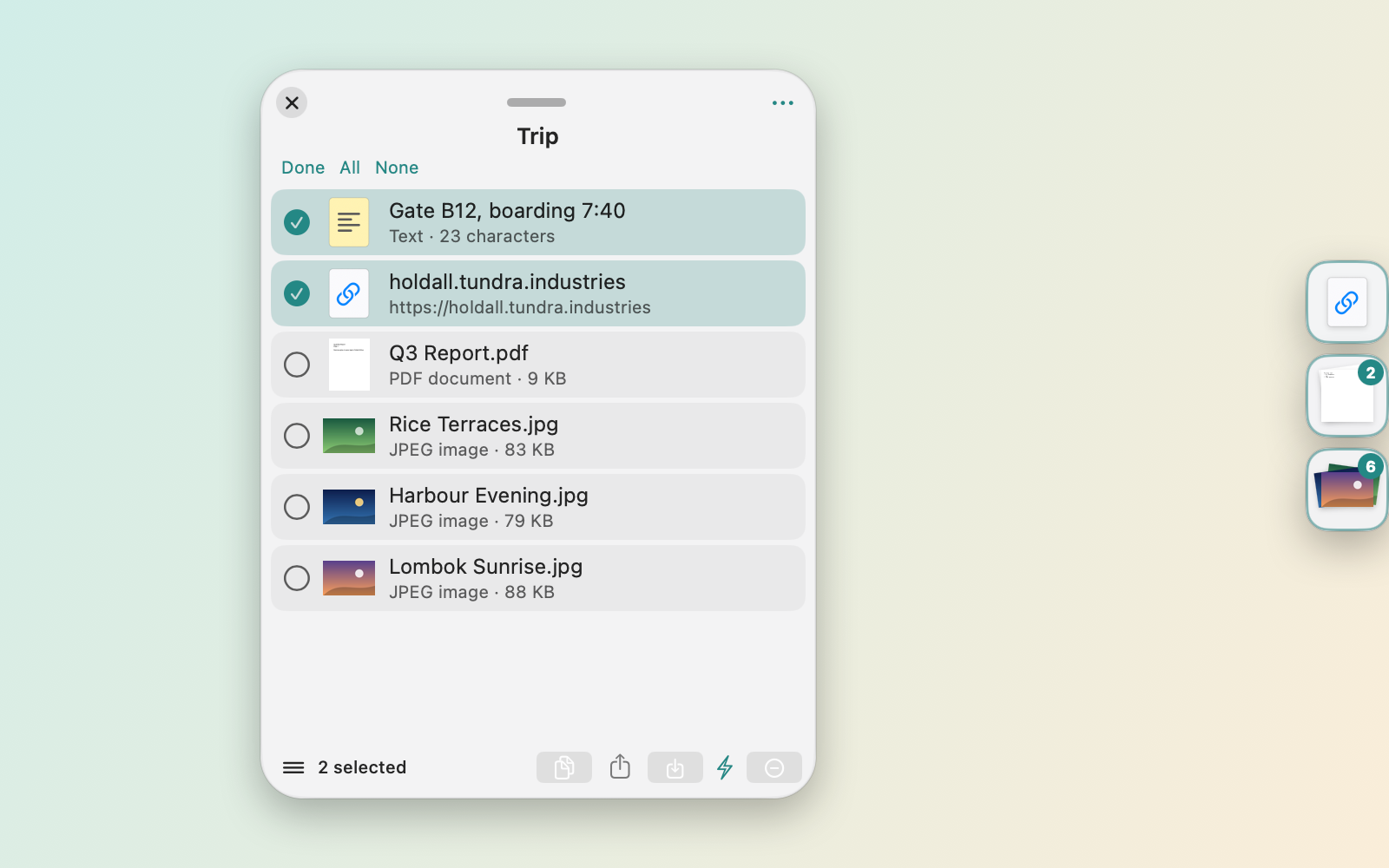
- A shelf can also be opened with Control-Option-Space or by dropping on the menu bar icon.
- Use several shelves at once, one per destination, each with a name and colour.
- Tick items in the list view and drag out just those.
- Shelves are remembered after a restart, so a half-finished collection is still there tomorrow.
- With Pro, Instant Actions run when you drop, and Batch Rename renames everything on the shelf with a counter, find and replace, or the date.
Collecting and dragging out is free, and stays free after the 14-day trial. Pro is $5.99 once and works on up to 3 Macs. Dropbay needs macOS 14 or later, on Apple silicon or Intel.
Questions
Does dragging move or copy files on a Mac?
Dragging to a folder on the same disk moves the files. Dragging to another disk copies them. Hold Option to copy instead of moving, or Command to move to another disk instead of copying.
Can I undo a move in Finder?
Yes. Choose Edit > Undo Move, or press Command-Z in Finder straight after the move.
Can Finder cut and paste files?
Finder has no Cut for files. Copy with Command-C, then press Option-Command-V in the destination to move instead of copying.